
Product research
How to check sales of a product on Meesho: estimate orders from ratings, age and price
A Meesho product page shows no order count, so you estimate: ratings times orders per rating, then listing age and price. A worked example, the limits and the free Seller Insights card.
By Rocket Listing TeamPublished 15 min read
Key takeaways
- A Meesho product page shows no order count, so a rival's sales can only be estimated. A useful public clue is the rating count, read against the listing's age and price.
- The sum is ratings × orders per rating × price. In our made-up example, 12,000 ratings at ₹300 give between ₹1.8 crore and ₹7.2 crore of lifetime gross sales, a fourfold range.
- No public source gives the true orders-per-rating number. Work out your own by dividing your orders by your rating count on a few of your listings.
- Rocket Listing's free Seller Insights card does these sums on meesho.com product pages. It shows estimates, never Meesho's numbers.
How to check sales of a product on Meesho: you cannot see a seller's real orders, because Meesho shows no order count on a product page, but you can estimate them. Multiply the rating count by the number of orders one rating stands for, then compare listing age and price. Treat the result as a range, not the seller's real figure.
We make Meesho seller tools, including a free card for meesho.com that does these sums. Every step below also works with a notepad, and we say where the card helps and where it cannot.
Can you see a competitor's sales on Meesho?
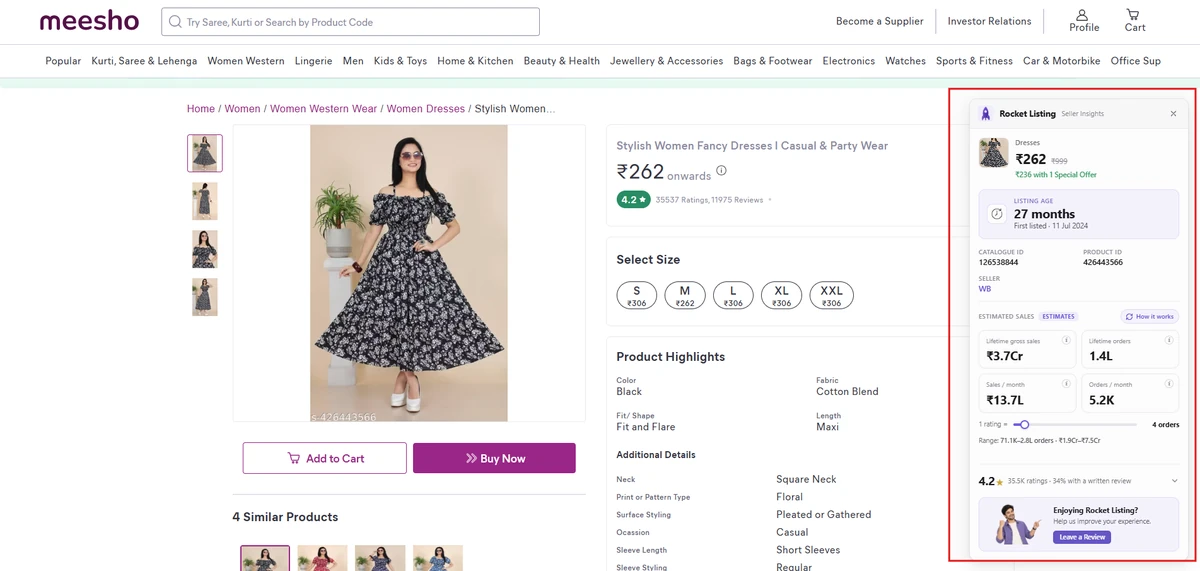
No. On the product page we read on 21 October 2026 we found the price, the price of each size, an average rating, the number of ratings and of reviews, product highlights and details, and similar products. We found no order count and no revenue. Your own orders are in your Supplier Panel; a rival's are not shown to other sellers, so any figure for a rival is an estimate.
What is public is the rating count, and it is a useful clue, because it grows as buyers order. It is also an incomplete one. Only some buyers rate, ratings arrive after delivery rather than at the order, and a rating count says nothing about returns.
How to check sales of a product on Meesho in four steps
- Read the rating count of the listing. Use the rating count, not the review count: reviews are normally the ratings that also have written text, so they are a smaller number.
- Pick an orders-per-rating number. It is how many orders you assume one rating stands for. Our card starts at 10, which means one buyer in ten rates, and shows a lower case at half that and a higher case at double.
- Multiply the rating count by that number for lifetime orders, then by the price for lifetime gross sales.
- Divide by the listing's age in months for a monthly pace, so a young listing and an old one can be compared.
Here are all three cases for one made-up listing: 12,000 ratings, a price of ₹300 and a listing age of 30 months. Every number is made up.
| Orders per rating | Buyers who rate | Lifetime orders | Lifetime gross sales | Orders a month | Sales a month |
|---|---|---|---|---|---|
| 5 (lower case) | 1 in 5 | 60,000 | ₹1.8 crore | 2,000 | ₹6,00,000 |
| 10 (the card's start) | 1 in 10 | 1,20,000 | ₹3.6 crore | 4,000 | ₹12,00,000 |
| 20 (higher case) | 1 in 20 | 2,40,000 | ₹7.2 crore | 8,000 | ₹24,00,000 |
The top case is four times the bottom one. That spread is the honest answer: the method shows how big a listing might be, not how big it is. Use it to rank listings against each other, and never quote it as a rival's turnover. The card writes lakh as L and crore as Cr, so for example 1.8L means 1,80,000 and ₹4.7Cr means ₹4.7 crore.
Gross sales here means orders times today's price. It is before returns, RTO, shipping, ads and tax, so it is not profit. The Meesho profit calculator is for that step.
How many orders does one Meesho rating stand for?
We found no public figure. No Meesho source gives the share of buyers who rate, and we have not checked our card's starting number against real order counts. It is a modelling assumption, not a benchmark, which is why the card lets you move it. The table shows only what each setting would imply.
| Orders per rating | Buyers who rate | Where it sits on the card |
|---|---|---|
| 1 | every buyer | The bottom of the slider |
| 5 | 1 in 5 | The lower case when the slider starts at 10 |
| 10 | 1 in 10 | Where the slider starts on every page load |
| 20 | 1 in 20 | The higher case when the slider starts at 10 |
| 50 | 1 in 50 | The top of the slider |
Different categories and price points may rate at different rates, so one setting may not fit every listing. A better route than guessing is to measure your own.
How to test your own orders-per-rating number
- Pick two or three of your own listings that have been live for several months.
- Count each listing's orders in your Supplier Panel and read its rating count on its meesho.com page. Use the same kind of order count every time: all orders received gives a gross figure, like the card's own label, while delivered orders only gives a delivered one.
- Divide orders by ratings. That is your number for that listing.
- Compare the listings. If they land close together, use the average. If they differ a lot, use the one nearest to the rival's category and price.
- Move the card's slider to that number. It goes back to 10 whenever the page is loaded again, so set it again after a reload or in a new tab.
Say your best listing has 800 ratings and 6,400 orders in your panel, counting every order received. That is 6,400 ÷ 800 = 8 orders per rating. With the slider at 8, the card's range for a rival runs from 4 to 16 orders per rating. These numbers are made up. Your figure describes your buyers, so test it on more than one listing and be careful if the rival sells in a very different category.

What a ratings-based estimate leaves out
| What it ignores | Why it matters | What to do |
|---|---|---|
| Past price changes | The card multiplies every past order by today's price. A listing that was cheaper or dearer before is mis-stated. | Compare orders when prices differ, and treat rupees as a rough size. |
| Which size sold | It uses the lowest price Meesho lists for the listing, even if most buyers pick a dearer size. In the page at the top of this guide (read on 21 October 2026), the M size costs ₹262 and the other four sizes ₹306; the card shows the lowest, ₹262. | Read the price of each size on the page before comparing sales. |
| Several designs in one listing | Meesho shows one rating summary for the whole listing, not one per design. | Check the Designs count on the card before you compare a one-design listing with a ten-design one. |
| Returns, RTO and cancellations | The card's sales figure is gross: orders times price, before the cost of returns, RTO, shipping, ads and tax. | Never set gross sales beside your own profit. |
| A recent rise or fall | The card shows a lifetime average. It cannot show that a listing took off, or faded, last month. | Write down a listing's rating count today and again after a month. The difference is its recent rating pace. |
| Which date counts as the start | The age shown comes from the listing's creation date in Meesho's data, which the card labels First listed. For the monthly figures it counts days from an activation date when Meesho's data has one, so the two can differ, and a re-activated listing may have been live for far less time than its age suggests. | Treat the monthly figure as rough, and use your own month-apart counts when it matters. |
Ratings per month: how to compare two listings fairly
A total says little until you divide it by age. Say listing A has 30,000 ratings and is 36 months old, and listing B has 4,500 ratings and is 5 months old. A has almost seven times the ratings, yet A collects about 833 ratings a month and B about 900. B is growing at least as fast. Every number here is made up.
| Listing | Ratings | Age | Ratings a month | Orders a month | Sales a month |
|---|---|---|---|---|---|
| A | 30,000 | 36 months | 833 | 8,333 | ₹20.8 lakh |
| B | 4,500 | 5 months | 900 | 9,000 | ₹22.5 lakh |
The card's Orders / month tile does a similar division for you, counting days (about 30.4 to a month) from the activation date when Meesho's data has one, so it can differ from a whole-month sum. It shows only for listings at least 30 days old; a younger one says it is too new to estimate a monthly pace. Ratings also lag orders, so a very new listing looks smaller than it is.
A rival check you can repeat for any product
Run the check on five to ten listings of the product you plan to sell, not on one star listing. How to find products to sell on Meesho helps you pick the candidates, and the best products to sell on Meesho lists what sellers name.
- Search your product on meesho.com and open the first listings that really match yours: the same material, size range and price band.
- Write one row per listing: price, rating, rating count, the share of 1 and 2 star ratings, listing age, designs, sizes and badges. The card fills in most of these. By hand you can read the price, the rating and the counts from the page.
- Work out ratings per month and an estimated orders range for each listing, using your own orders-per-rating number.
- Read about 20 of the 1 and 2 star reviews across the top listings. A complaint that repeats, such as size, colour or packing, is your opening and also your return risk.
- Place your own product. Where does your price sit in the band, what will you do better, and does the margin hold after returns? Use the Meesho profit calculator and read how to set price on Meesho.
A listing that sells a lot can still earn little, so read why sales grow but profit falls before you copy a rival's price. Start with a small order, as how to find products to sell on Meesho advises.
What the free Seller Insights card shows on a Meesho product page
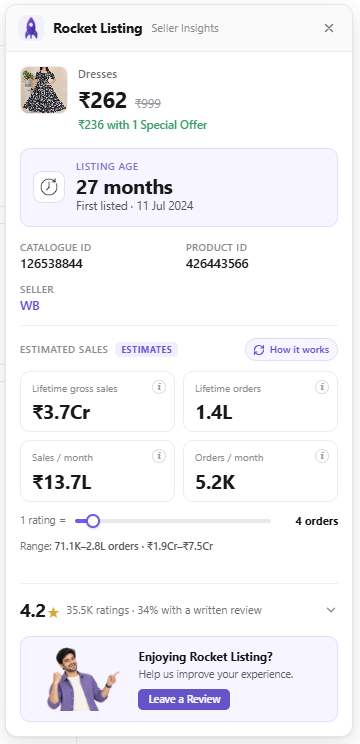
Seller Insights is a card that the Rocket Listing Chrome extension adds to meesho.com product pages. It is free: it needs no sign-in and no paid plan, only the extension, which needs desktop Chrome 114 or newer because its side panel uses that version. Open a product page (its address ends in /p/ and a short code) and the card appears in the product column, above the size and detail sections, or floats at the bottom right. Refresh any Meesho tab that was open before you installed. The picture at the top of this guide shows where the card sits on a product page, outlined in red, and the close-up below shows the same card.
| Part of the card | What it shows | How to use it |
|---|---|---|
| Category and price | The category Meesho gives the listing, the lowest price listed, the MRP struck through when it is higher, and any offer line as Meesho words it. | Compare like with like: the same category and price band. |
| Listing age | Whole months since the listing's creation date in Meesho's data, which the card labels First listed, with that date. | Read ratings against age, never on their own. |
| Catalogue ID and Product ID | Meesho's numbers for the listing and for its main product. On the main design's web address, the short code after /p/ is that product ID written in base 36. | Note them to find the listing again and to tell lookalikes apart. |
| Seller | The state the seller is registered in, as a short code. It is not a name. | Of little use alone: it does not say who the seller is. |
| Quality score | Shown only when the page data Meesho sends includes one. The listing in our screenshot had none. | Do not count on it being there. |
| Estimated sales | Four tiles: lifetime gross sales, lifetime orders, sales a month and orders a month. Each has an i that shows how it was worked out, including the price it used, which can differ slightly from the one in the card's header. A Range line sits below. | Rank listings with them. Never quote them as real. |
| The slider | 1 rating = N orders, from 1 to 50, starting at 10. The Range line runs from half to double the slider's value. | Set it to your own tested number. |
| How it works | Flips the tiles to show the lower, base and higher cases for orders and sales, and the base case's multiplication written out. | Check the working yourself. |
| Ratings | The average, the rating count and the share of ratings that also have written text. Open it for a donut with a bar for each star, the share of 1 and 2 star ratings, the numbers of reviews, designs and sizes, and Meesho's badges such as Assured, Mall, Flash or Sale. | Look at the complaint share and how wide the range of designs and sizes is. Sale badges come and go. |
The card reads the product data that Meesho's own page loads. If Meesho did not send the full product reply, the card asks Meesho's own search for that product, the way the page would, using your Meesho session. It asks once per product and tries up to two other request formats only if the first fails. It keeps up to 40 recently viewed listings in your browser, and nothing from the card is sent to Rocket Listing's servers.
What the card does not show
- A rival's real orders, revenue or profit.
- A seller's name, a keyword list or a price history.
- Your own orders, returns or payouts. The card does not read your account; those are in your Supplier Panel.
- Pages where Meesho sends no product data (the card then says it could not read the product's stats) and listings with no ratings yet (it says there is not enough data).
- Anything on Flipkart, Amazon or Myntra, or inside the Meesho app. It works on meesho.com product pages in desktop Chrome.
What Meesho's own tools show you instead
Meesho's Product Recommendations tool has a My Categories area with Trending Searches, Popular Outside Meesho and Top Selling, according to its Learning Hub lesson (archive copies of 6 August 2024 and 14 May 2025, read 14 October 2026). Its Price Recommendation tool has a comparison view with competing products (Learning Hub lesson, archive copy of 14 July 2024). As the lessons describe them, neither shows a rival's order count. Menu names change, so open both in your own panel.
Use them for ideas and prices, and the rating-based estimate for a rough size of a rival. If keywords are what you are after, read how rival titles are worded and follow how to choose keywords without stuffing your title. To turn a test product into more orders, see how to increase sales on Meesho.
Sources and further reading
- Rocket Listing on the Chrome Web Store (version 1.0.6, updated 18 October 2026; read 21 October 2026)
- Meesho Learning Hub: How to use the Product Recommendations tool (archive copies of 6 August 2024 and 14 May 2025, read 14 October 2026)
- Meesho Learning Hub: How to use the Price Recommendation tool (archive copy of 14 July 2024)
- Chrome Extensions: Side Panel API (needs Chrome 114 or newer)
Rocket Listing is an independent tool. Meesho, Flipkart and Amazon are trademarks of their respective owners, and Rocket Listing is not affiliated with, endorsed by or sponsored by them. Marketplace rules, fees and panel layouts change, so confirm current details in your official seller panel.
Found an error or an out-of-date figure? Tell us. How we research, date and correct these guides: editorial policy.
Quick answers
Frequently asked questions
01Can I see how many orders a product has on Meesho?
No. A Meesho product page shows no order count, and a rival's orders are not shown to other sellers. You can read your own orders in your Supplier Panel and estimate a rival's from its public rating count, listing age and price. The result is a range, not the seller's real number.
02How do I estimate a Meesho product's sales from its ratings?
Multiply the rating count by the orders you assume one rating stands for. Multiply that by the price for lifetime gross sales, and divide by the listing's age in months for a monthly pace. Run a lower and a higher assumption too, because nobody knows the true ratio.
03How many orders does one Meesho rating stand for?
There is no public figure. Rocket Listing's card starts at 10 orders per rating, meaning one buyer in ten rates, and lets you move it from 1 to 50. A better route is to divide your own orders by your own rating count on a few listings and use that number.
04How accurate are Meesho sales estimates?
We cannot say, and we have not checked our card against real order counts. An estimate is only as good as its orders-per-rating number, which may differ by category and price, and it uses today's price for every past order. Use it to rank listings, not to count orders.
05Is Rocket Listing's Seller Insights free?
Yes. The card needs the Rocket Listing Chrome extension on desktop Chrome and runs on meesho.com product pages with no sign-in and no paid plan. Autofill, the extension's other main feature, needs a Google sign-in and has its own plan limits.
06Does Seller Insights show a competitor's keywords or price history?
No. The card shows category, price, listing age, IDs, registered state, estimated sales and ratings. It has no keyword list and no price history. For keywords, read how rival titles are worded and use our guide to choosing keywords without stuffing the title.
07How do I find a product ID or catalogue ID on Meesho?
On a meesho.com product page the Seller Insights card lists both. On the main design's address, the short code after /p/ stands for the product ID, written in base 36. For your own listings, look in your Supplier Panel, because menu names change.
08Does it work on the Meesho app, Flipkart or Amazon?
No. The card works on meesho.com product pages in desktop Chrome. Flipkart, Amazon and Myntra are not supported, and the Meesho app is not a web page the extension can read.
More seller guides

Product choice
How to find products to sell on Meesho: a 6-check scorecard
A six-check scorecard for choosing what to sell on Meesho, using Meesho's own Product Recommendations, Seller Insights estimates and your margin.

Product choice
Best products to sell on Meesho: which ones earn more after returns
The categories Meesho sellers keep naming, why the most-ordered product is not always the one that earns more, and a check to run before you buy stock.

Pricing
How to set price on Meesho: Transfer Price, Price Recommendation and a margin check
Start from what reaches your bank. Transfer Price, the Price Recommendation tool and a margin check, with a worked example in made-up numbers.